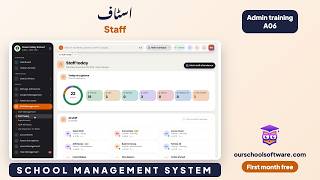
This video is 4 minutes long and shows parents on the real screens of the software, step by step, with Urdu and English captions. It is for principals, admins and office staff. Below are the same steps in writing, so you can follow along at your own pace or come back to a step later.
In this video
- Parent accounts
- Children & papers
- Advance payments
- Payment promises
- Reports
Step by step
1. Overview
- One father = one account with all his children: one app, one family voucher
2. Parent accounts
- Parent Accounts › Manage Accounts
- At the top: accounts, how many use the app, advance credit and students with no parent account
- "Highest dues": the parents who owe the most, one click away
- A new father: "Add parent", name, CNIC and phone (it is also made by itself at admission)
3. Children & papers
- For each father: connected children, password reset, edit, and "Vouchers & passes"
- This father's three children; if one is linked wrongly, "Disconnect"
- "Vouchers & passes": print the family voucher, the dues report or a gate pass
4. Advance payments
- When parents pay in advance, "Manage Advance Fee": the next fees are paid from it by themselves
5. Payment promises
- A father says "I will pay by this date": write the promise in "Dues Clear Commitments"
- Type the father's name or ID and pick him
- The whole family or one child; the amount ("Use all unpaid"), the date and a note
- The parent is reminded by WhatsApp and the app 3 days before and on the date, by itself
- Tabs: open, due soon, date passed, cleared; it also shows on each child's profile
6. Reports
- "Parent Info Reports": parent lists, to Excel or print
7. Many at once
- To correct many fathers' phones or CNICs together: "Bulk edit"
The names and numbers in the video are from a demo school and are made up.