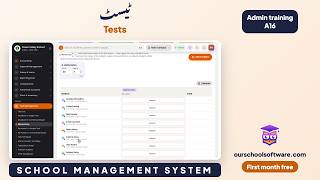
This video is 2 minutes long and shows timetable on the real screens of the software, step by step, with Urdu and English captions. It is for principals, admins and office staff. Below are the same steps in writing, so you can follow along at your own pace or come back to a step later.
In this video
- A class's week
- Add or change a period
- Print & send
- Clashes & substitutions
Step by step
1. A class's week
- Timetable Management › Class Timetable: choose the class and section
- The whole week: each day's periods, subject, time and teacher
2. Add or change a period
- A day's "+" adds a period: the subject, start and end time
- The pencil changes a period, the bin removes it
3. Print & send
- "Print Timetable", or "Send To Parents Via WhatsApp": to all the class's parents
- Teachers see their own timetable in the app; parents see their child's
4. Clashes & substitutions
- "Substitutions & Clashes": today's periods of teachers on leave appear here
- Pick a free teacher for each period: only teachers without a class at that time are offered
- The cover teacher sees it under "My substitutions" in the app; "Print the day's sheet" for the notice board
- Below, "Clashes": if a teacher is booked in two classes at once, it warns here
The names and numbers in the video are from a demo school and are made up.